Guardian Angel Instructions / FAQ
Setup
This only needs to be done once. Skip to operation once this is complete. If your Wi-Fi network changes, this will need to be done again. If the bag is turned on/off, this does NOT need to be done again.
Step 1 (Powering on)
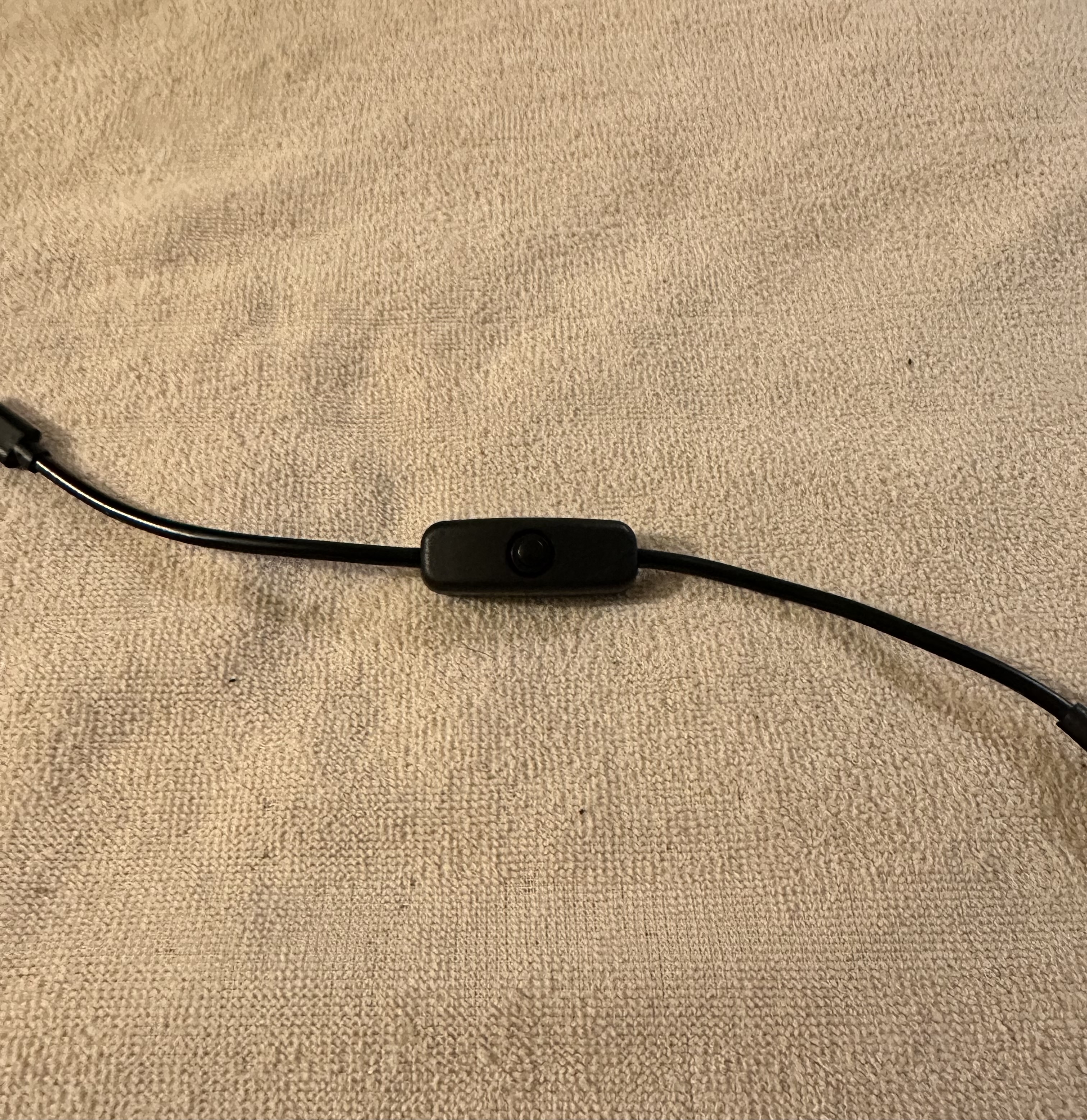
Powering on the bag.
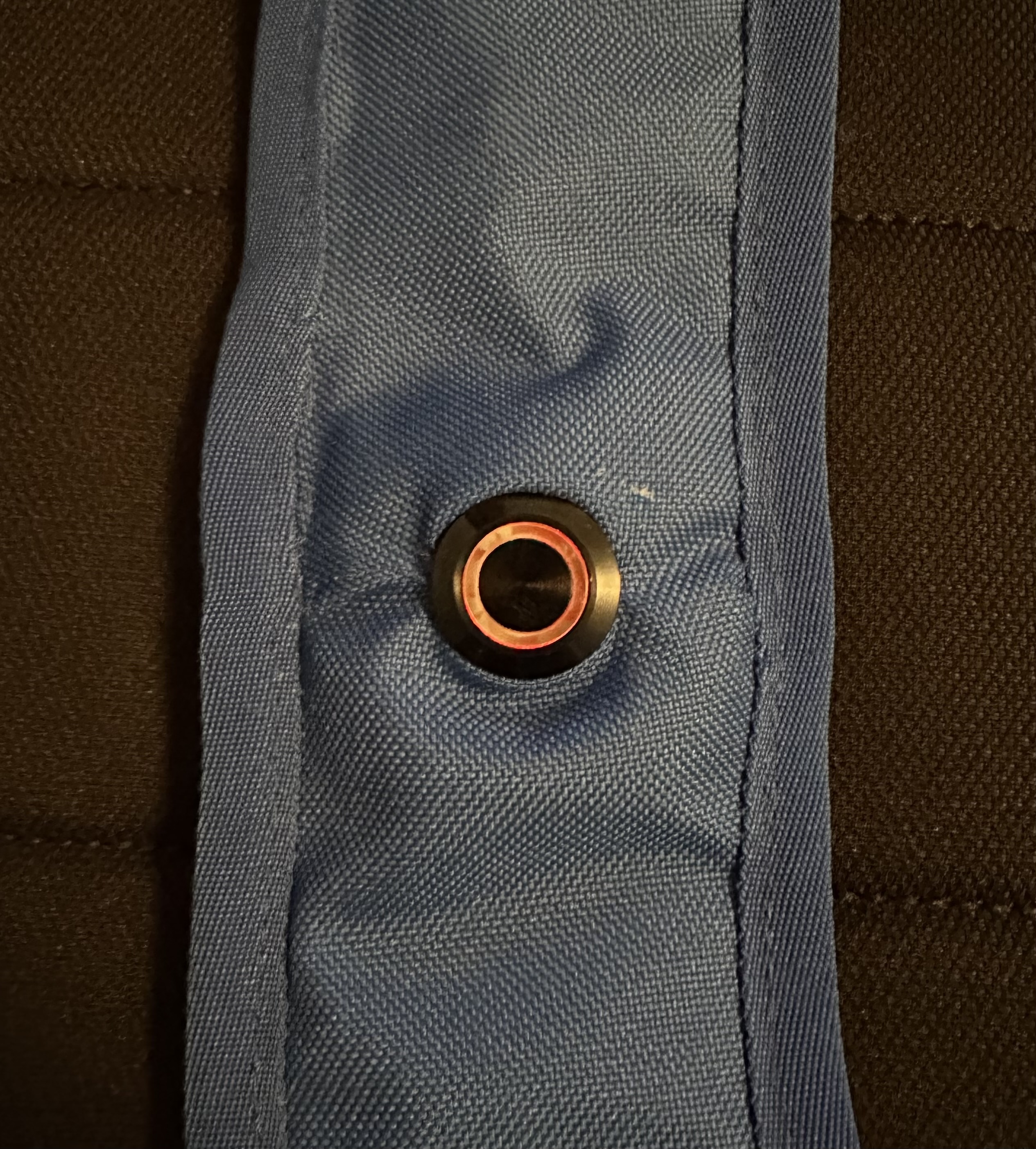
Locate the power button inside the bag for the control module. Push in that button so the LEDs illuminate on the control module. On the strap of the bag, you will see a series of 3 slow blinks and then 2 fast to determine that the bag is online and opperational.
Step 2 (Wi-Fi)
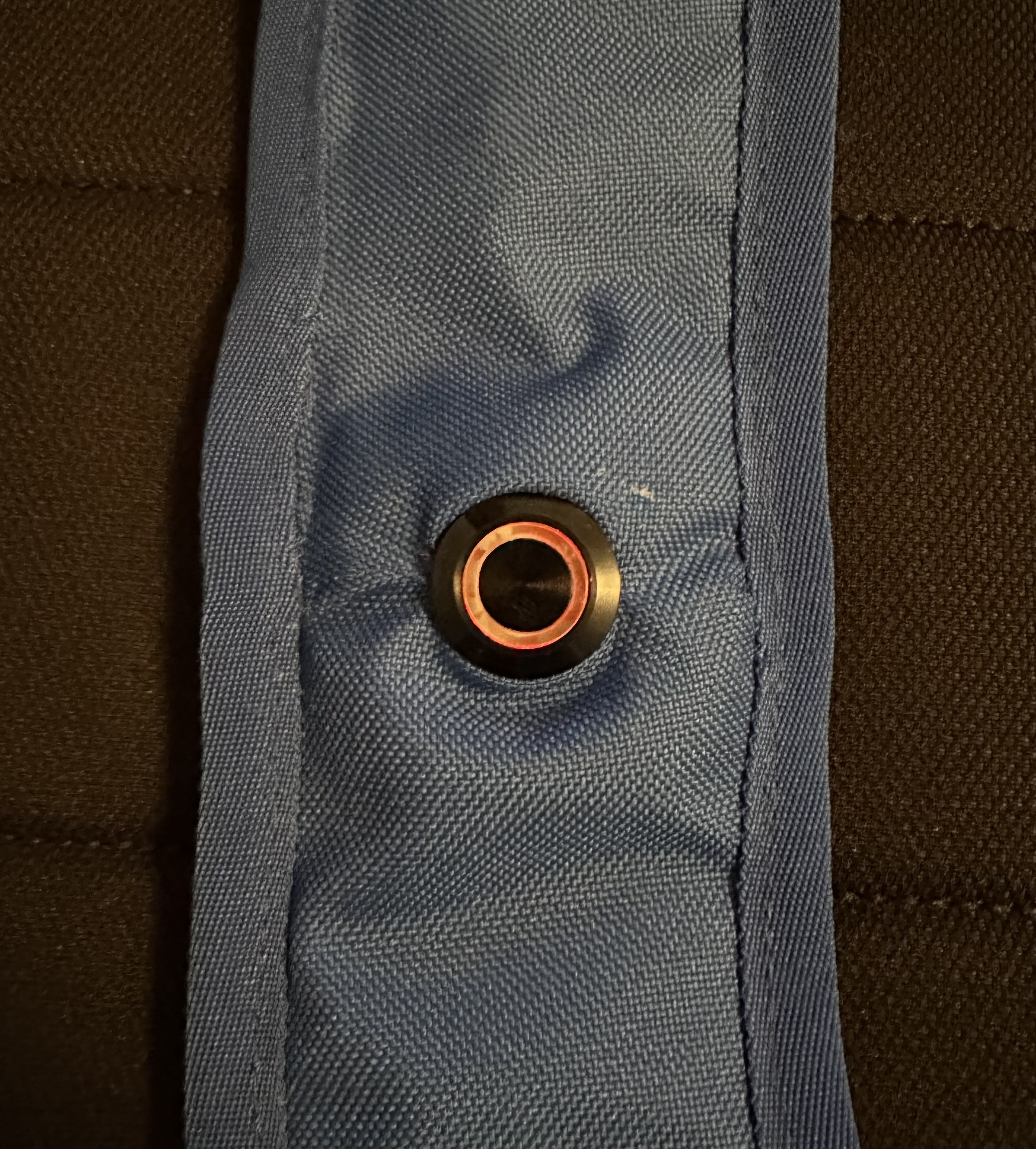
Connect the bag to your home Wi-Fi.
Press & hold the button until the LED flashes 8 times.
Note: After this sequence, the bag will reboot and you will see a series of 3 slow blinks and then 2 fast to determine that the bag is back online.
Step 3 (Wi-Fi)
Download the application.
Download and install berrylan from the App Store/Google Play Store.
iOS Download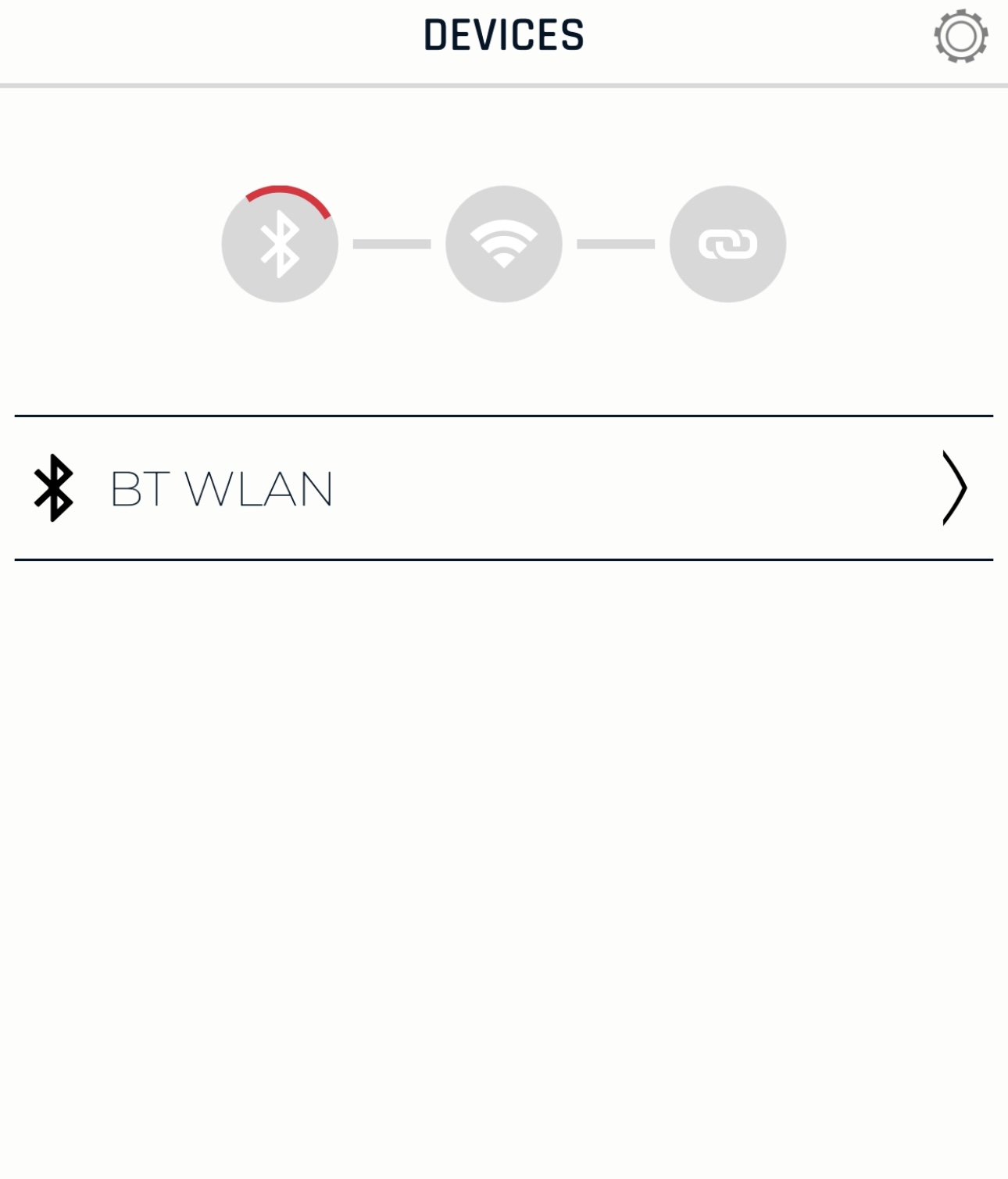
Step 4 (Wi-Fi)
Selecting a Wi-Fi network.
Open the berrylan application and select the first device shown labelled BT WLAN. It will prompt you to select your home network and enter the password.
Note: Once complete, you will see Thanks for using BerryLan. You can now close the application.
Step 1 (Streaming/Recording)
Live streaming to Vewbie.
Press the button once and the LED will illuminate solid. If a valid cellular connection was made, the bag will begin livestreaming.
Note: If a weak cellular connection was detected, it will locally record and it will be automatically uploaded to the site when your a reconnected to your home Wi-Fi at a later time.
Step 2 (Logon to Vewbie)
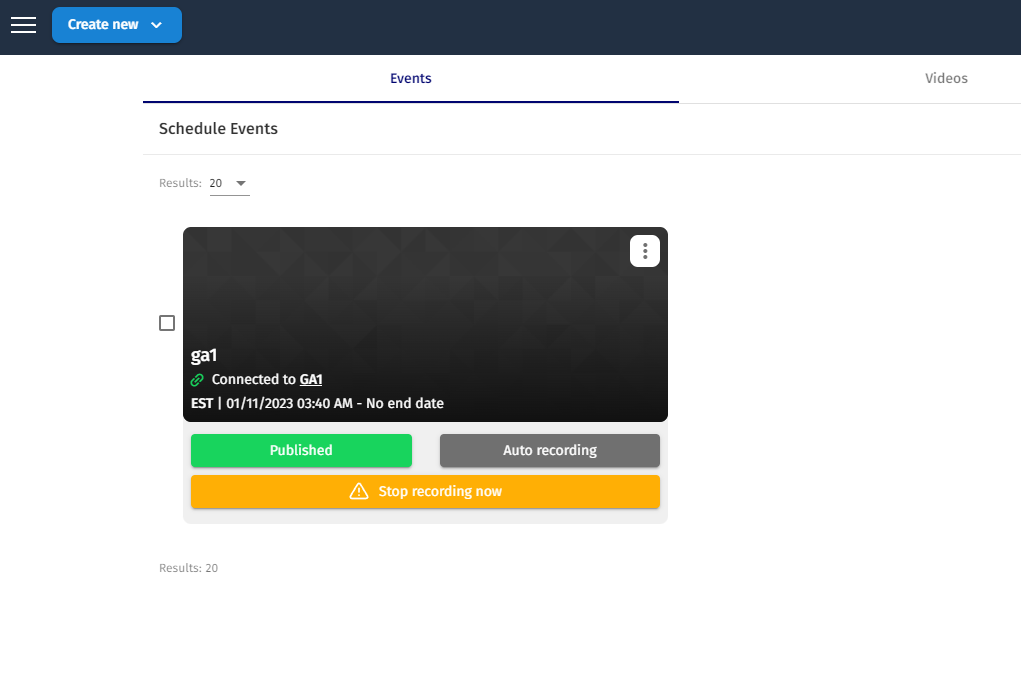
Log onto Vewbie.
Log into Vewbie's site using the link below with the credentials provided by Todd.
Note: Once logged in, return here and press this button again to get to the correct page.
Step 3 (Viewing the stream)
Viewing the Livestream in Vewbie.
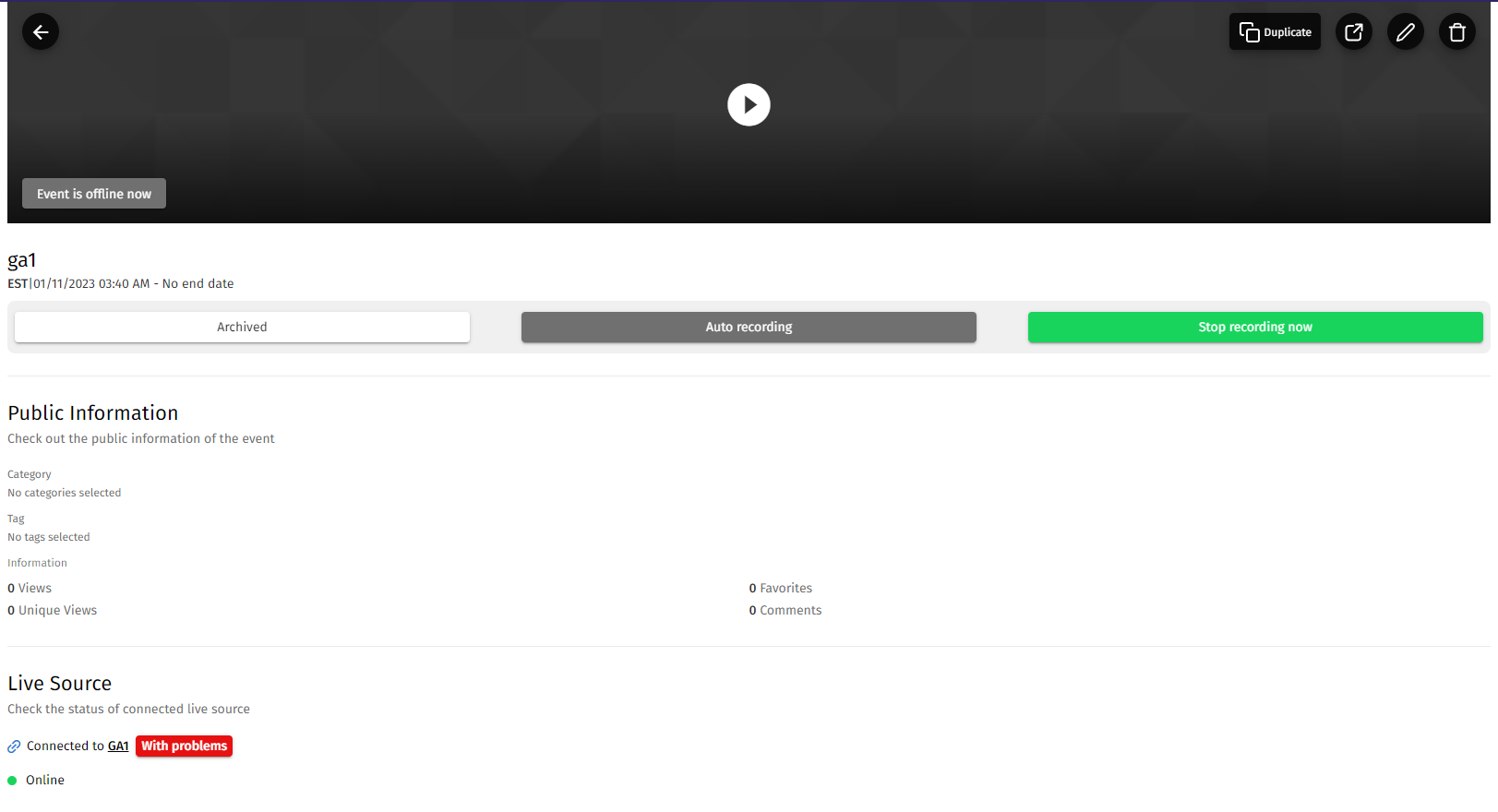
Navigate to view using the link below. You will see a stream labelled gaX, where X represents a number. Click on that stream and you will be able to view live.
Note: If a weak cellular connection was detected, it will locally record and it will be automatically uploaded to the site when your a reconnected to your home Wi-Fi at a later time.
Step 4 (Ending the stream)
Ending the stream.
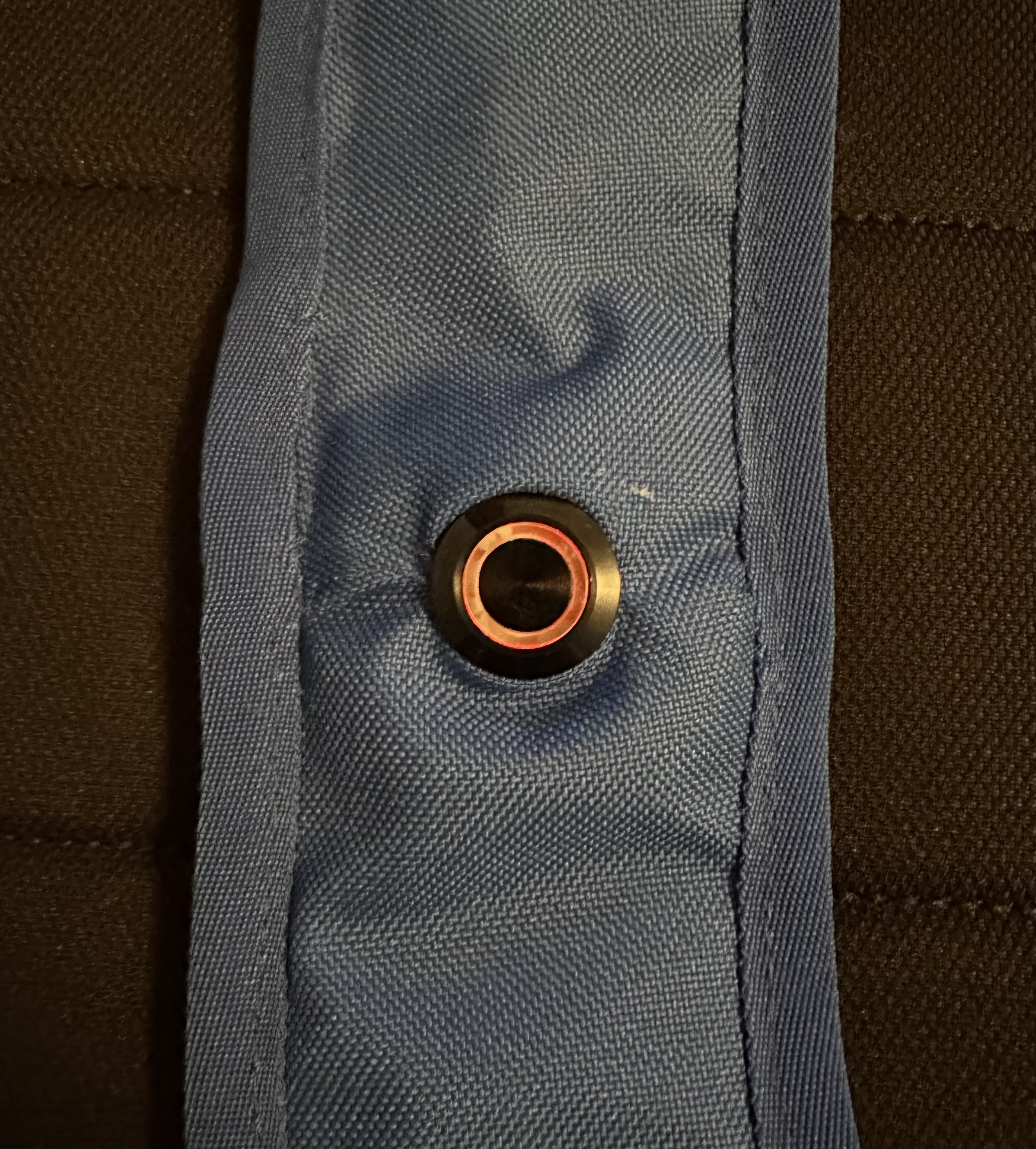
Press the buttton on the bag once and the LED will blink twice to indicate the press was recieved.
Note: LED will stay illuminated for a little bit after the press while it ends the stream.
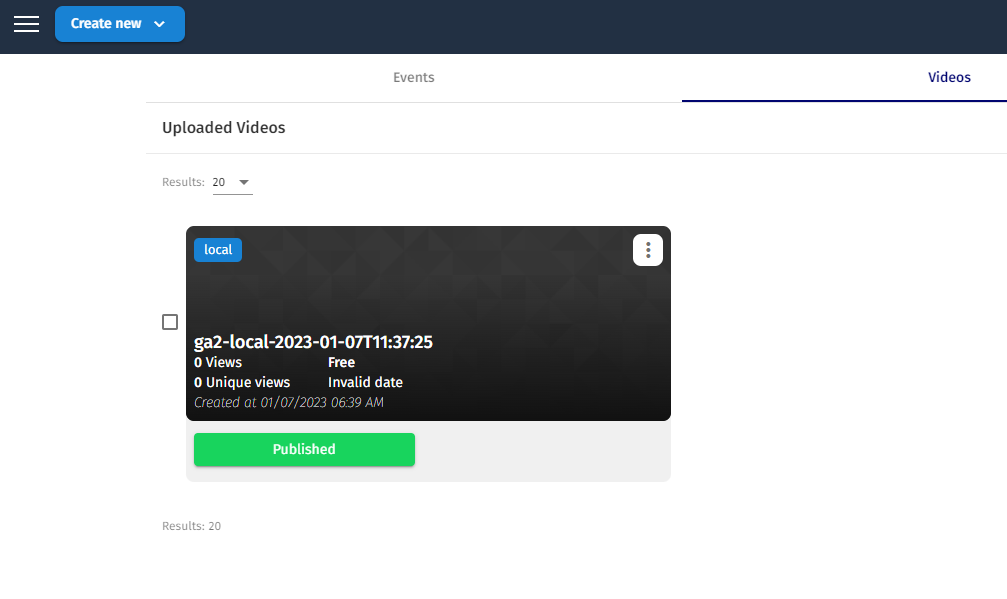
Step 5 (Watching the Recorded Video)
Watch the Recorded Video.
When livestreaming, the stream is recorded on the device. After a period of 5-10 minutes, the video will be uploaded to Vewbie and converted for viewing. To view that recording after you have finished streaming, navigate to Vewbie by clicking on the link below. Select the video that you just recorded (if you are connected to your home Wi-Fi).
Note: The filenames are not perfected just yet. The next update will fix the filenames. The format is gaX-local-YYYY-MM-DDTHH:MM:SS.
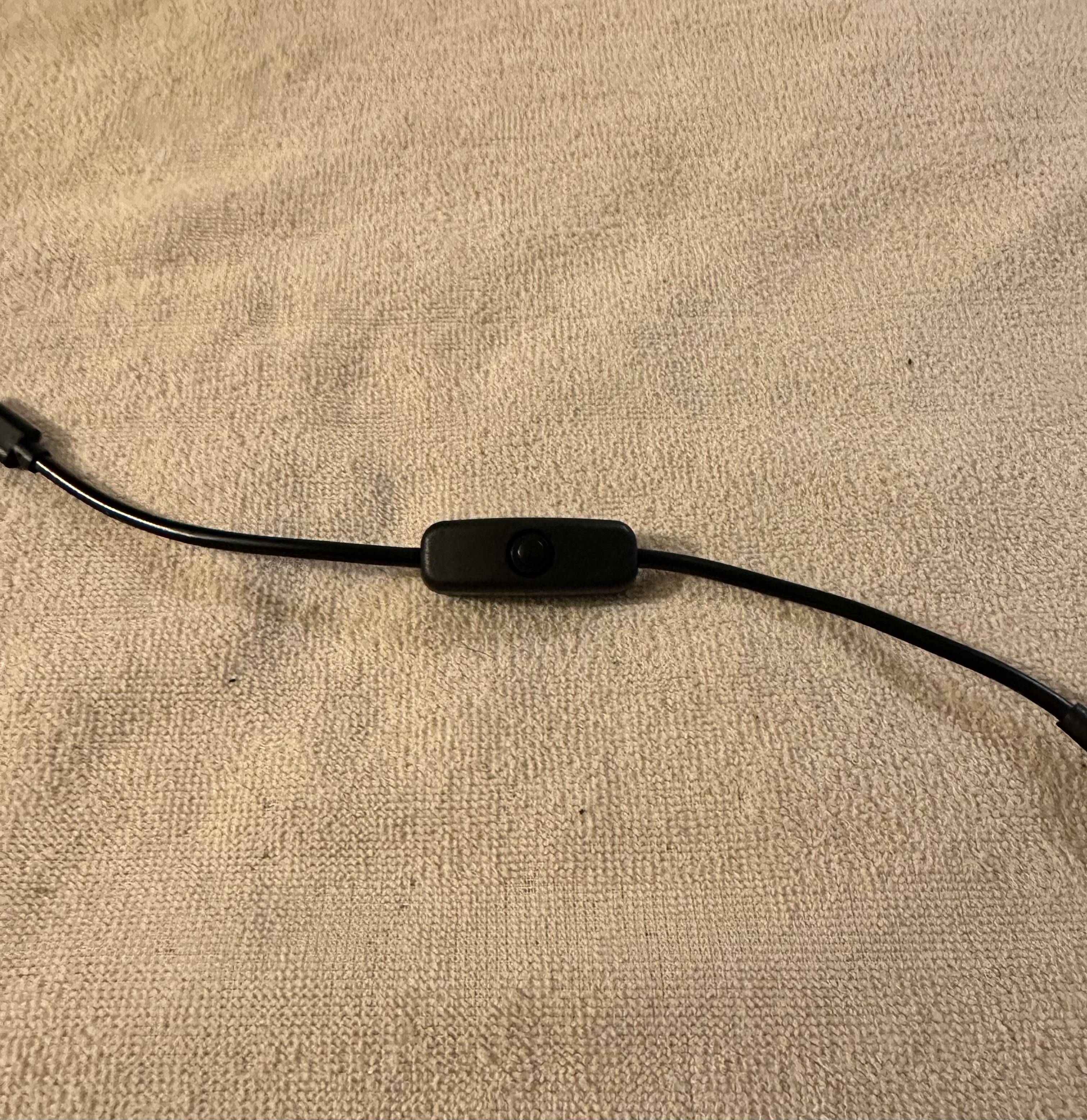
Step 6 (Powering off)
Powering off the bag.
Powering off the device is the same as turning it on. Locate the button inside the bag and switch it off. All of the LEDs on the control module will turn off.
Note: Do not turn off the bag while the LED on the strap is illuminated. This can cause a corruption of the device.
Charging
Follow these insturctions to remove, charge & replace the battery.
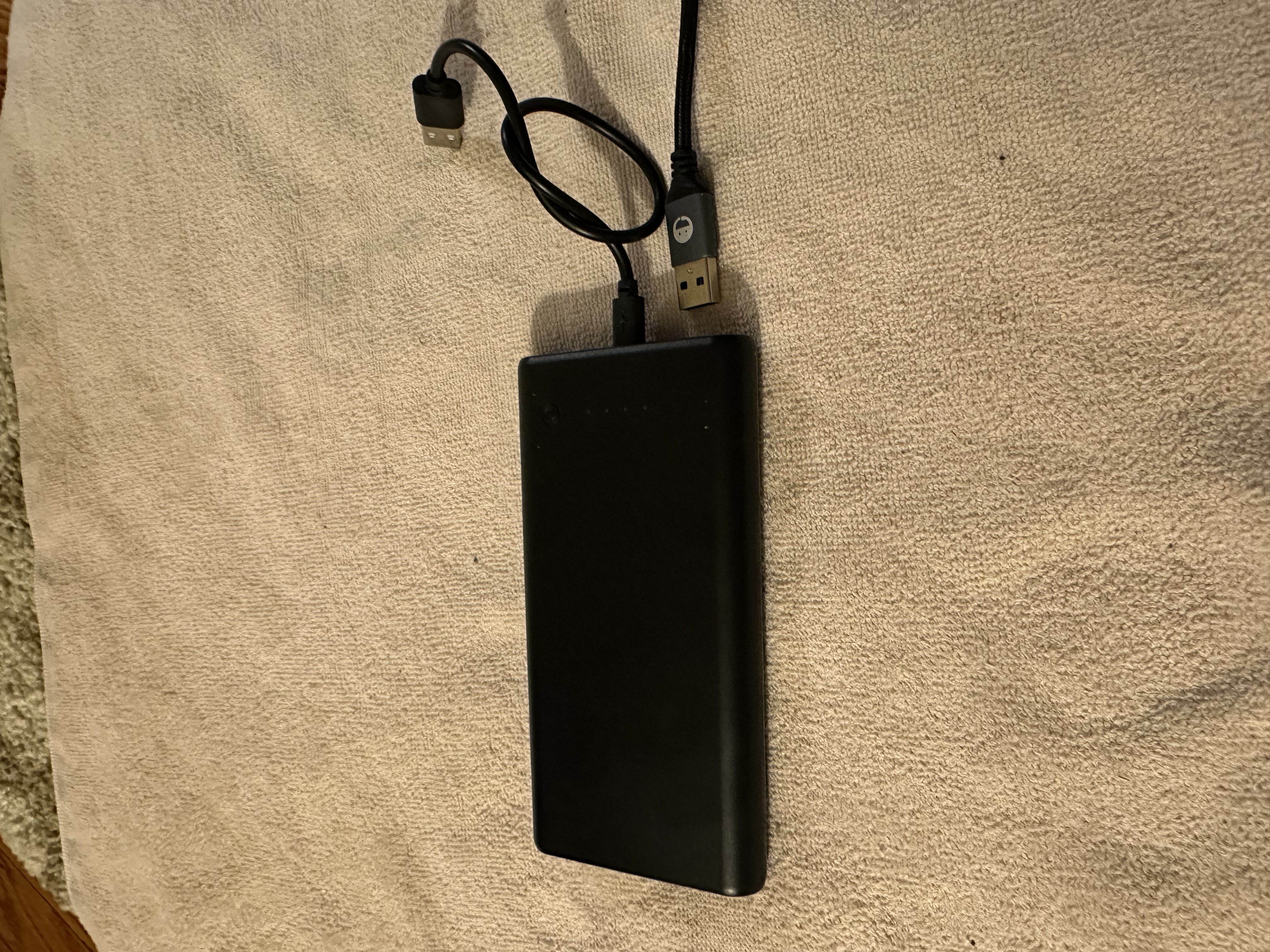
Step 1 (Remove the battery)
Remove the battery.
Locate the battery in the bottom of the bag. Remove the gray USB-A that is attached to the control module and pull out the battery.
Note: There is a small cable that should be attached to it. That is the charging cable, leave that attached.
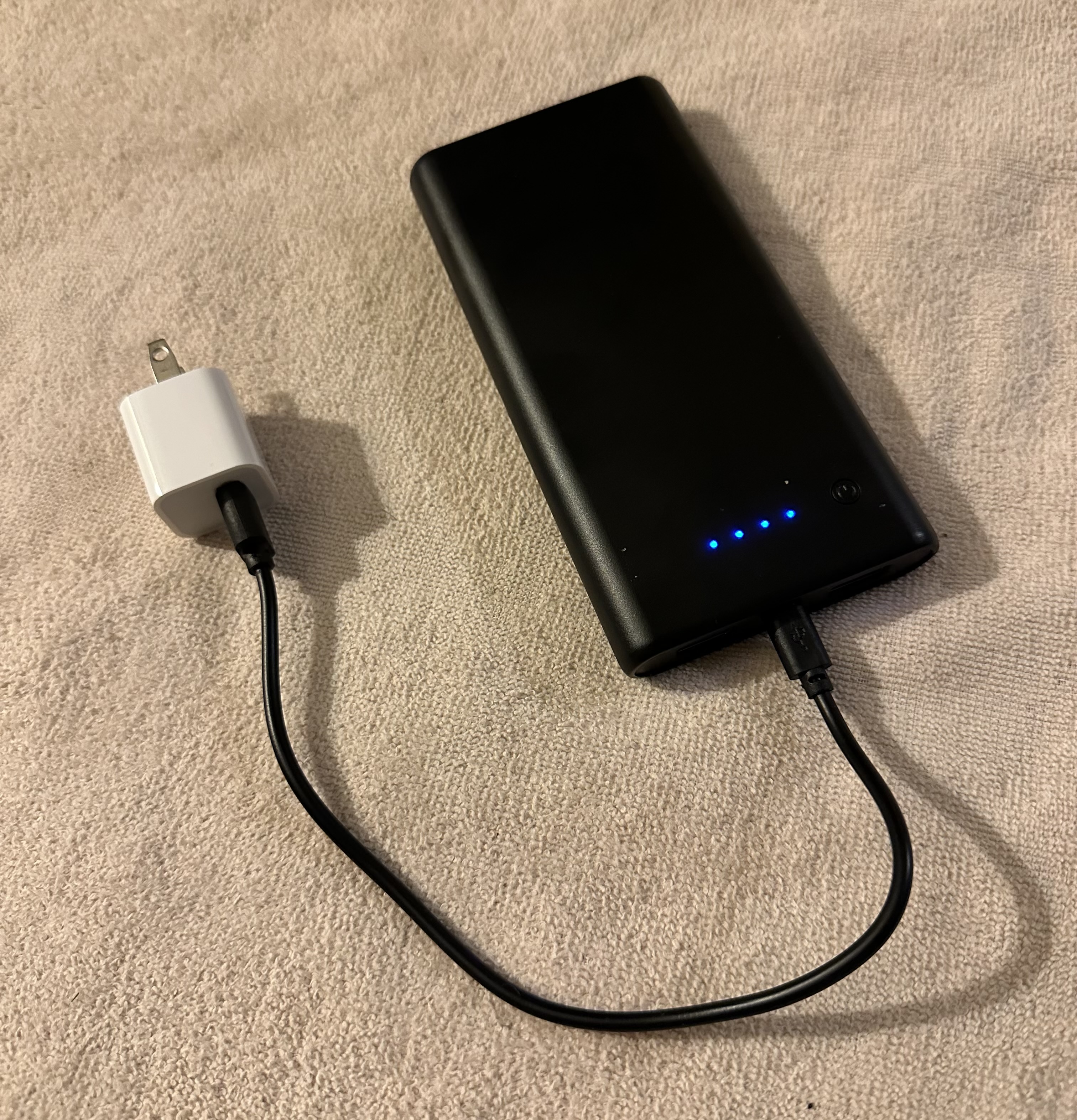
Step 2 (Charge the battery)
Charging the battery.
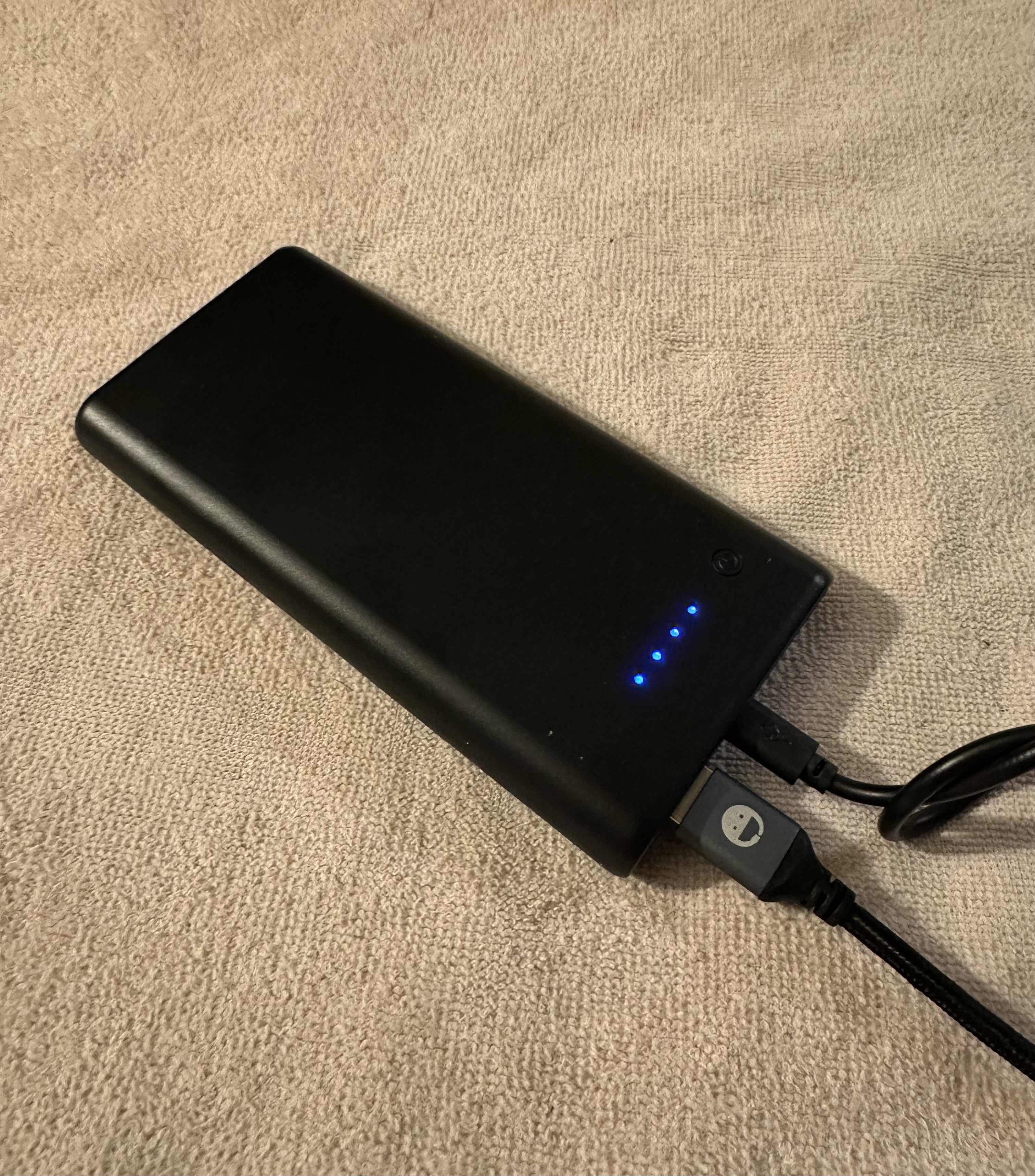
The battery can be plugged into an USB-A power adapter. Charge it until the 4 blue lights on the top are solid.
Step 3 (Replacing the battery)
Replacing the battery back into the bag.
After disconnecting the battery from the charger, leave the small micro-usb to USB-A cable attached to the battery side. Plug in the gray USB-A to the left port of the battery if the LEDs of the battery are facing up.
Note: If the USB-A cable is plugged into the wrong port, the control module will not work.